PHP Java .NET Python Node.js Ruby Go Command Line API WebSave WordPress Zapier Make (formerly Integromat) Postman Bubble Integrately Appy Pie Pipedream Activepieces Pabbly

PDF Export in Zapier

Generate Business PDFs Automatically in Zapier

Overview

PDF Export by PDFCrowd lets you generate PDF invoices, reports, certificates, contracts, receipts, and archived records directly within your Zaps. Start from HTML, a public URL, a form submission, an order, webhook data, or fields from any previous Zap step.

Perfect for: sending branded PDFs after form submissions, emailing Shopify order PDFs, saving CRM quotes to cloud storage, turning Airtable or Google Sheets rows into documents, and archiving webhook data as readable PDFs. No coding required - connect your PDFCrowd account, map your Zapier data, and use the generated PDF in later steps.

Key Features

  • URL to PDF: Convert any publicly accessible web page to PDF
  • HTML to PDF: Convert raw HTML content from previous Zap steps
  • Business data to PDF: Use form, CRM, spreadsheet, webhook, or order data in generated documents
  • Seamless Zap integration: Use file URLs from previous steps (uploads, attachments, storage services) as input
  • Full customization: Control page size, margins, headers, footers, and more
  • File output: Get a downloadable PDF file URL to use in subsequent Zap steps

How It Works

  1. Start with a trigger such as a form response, order, CRM record, spreadsheet row, webhook, or scheduled report
  2. Add a PDF Export by PDFCrowd action to your Zap
  3. Connect your PDFCrowd account
  4. Provide a URL, HTML template, or mapped data from previous Zap steps
  5. Configure PDF options (optional)
  6. Email, store, upload, or attach the generated PDF in subsequent actions

Open in Zapier

Quick Start

The following examples demonstrate how to use the PDFCrowd Zapier integration to convert HTML to PDF in your Zaps.

Note: You'll need a PDFCrowd account with API access. For testing, you can use username demo and API key demo. Sign up to get your own API credentials.

Example 1: Convert a URL to PDF

The simplest use case - convert a web page URL to PDF. This works for any publicly accessible URL.

Zap Configuration
Action: Convert HTML to PDF
URL: https://example.com/invoice/123
Output Filename: invoice.pdf

The action outputs a file URL that you can use in subsequent steps - for example, to attach to an email or upload to cloud storage.

Example 2: Convert HTML Content to PDF

Convert HTML content directly - useful when generating PDFs from templates or data from previous Zap steps.

Zap Configuration
Action: Convert HTML to PDF
HTML Content:
<html>
<body>
  <h1>Invoice #{{invoice_number}}</h1>
  <p>Amount: ${{amount}}</p>
  <p>Date: {{date}}</p>
</body>
</html>
Output Filename: invoice-{{invoice_number}}.pdf

Use Zapier's data mapping to insert dynamic values from trigger data or previous action outputs into your HTML template.

Example 3: Customized PDF Output

Configure PDF options for professional output with custom page size, margins, and headers/footers.

Zap Configuration
Action: Convert HTML to PDF
URL: https://example.com/report
Options Mode: Expert
Page Size: Letter
Orientation: landscape
Margin Top: 1in
Margin Bottom: 1in
Footer HTML:
<div style="text-align: center; font-size: 10px;">
  Page <span class="pdfcrowd-page-number"></span>
  of <span class="pdfcrowd-page-count"></span>
</div>

Switch to "Expert" mode in the action to access all available conversion options including headers, footers, watermarks, and advanced page setup.

Full Options Reference: For a complete list of all available conversion options, see the API Reference documentation.

Example 4: Complete Workflow

A typical workflow that generates a PDF and sends it via email:

Zap Steps
  1. Trigger: New form submission in Google Forms
  2. Action: Convert HTML to PDF
    • HTML Content: Custom HTML template with form data
    • Output Filename: submission-{{submission_id}}.pdf
  3. Action: Send Email in Gmail
    • Attachment: PDF file from step 2

The PDF file output from PDFCrowd can be used directly as an attachment in email actions, uploaded to cloud storage, or processed by other apps.

Authentication

Connecting Your PDFCrowd Account

PDF Export requires your PDFCrowd API credentials to authenticate. When you add the action to your Zap for the first time, Zapier will prompt you to connect your PDFCrowd account.

Required Credentials

Username
Your PDFCrowd username - the same username you use to log in to your PDFCrowd account.
API Key
Your PDFCrowd API key (not your account password). To get your API key, choose a license plan that includes API access.

Security Notes

  • Your API key is stored securely by Zapier and is never exposed in your Zaps.
  • You can regenerate your API key anytime from your PDFCrowd account if needed.
  • Each Zapier connection to PDFCrowd counts against your API usage limits.

Error Handling

When a conversion fails in your Zap, Zapier will show an error message from PDFCrowd explaining what went wrong.

Common Errors

401 Unauthorized
Invalid username or API key. Verify your credentials in the PDFCrowd connection settings within Zapier. Make sure you're using your API key, not your account password.
403 Forbidden
Service suspended or insufficient credits. Check your PDFCrowd account for credit balance and account status.
430 Too Many Concurrent Requests
Too many simultaneous conversions. Your plan has a limit on concurrent requests. Wait for current conversions to complete or upgrade your plan.

For more information on status codes, see our status codes reference.

Debugging Tips

  • Test URLs manually: Before using in a Zap, test your URL in our API Playground to verify it converts correctly.
  • Check Zap history: Zapier's task history shows detailed error messages and the exact input values used.
  • Simplify first: Start with minimal options and add customizations one at a time to identify problematic settings.

Error Handling in Zaps

Zapier provides built-in error handling options for your Zaps:

  • Auto-replay: Zapier can automatically retry failed tasks.
  • Paths: Use Zapier Paths to handle success and error cases differently.
  • Error notifications: Configure email alerts for failed Zap runs.

Troubleshooting

Common issues and solutions when using PDFCrowd with Zapier.

Connection Issues

  • Verify you're using your API key, not your account password
  • If you changed your API key in PDFCrowd, reconnect in Zapier with the new key
  • Try regenerating your API key and reconnecting

Conversion Issues

PDF looks different than expected

  • Missing styles: The page may rely on styles that don't load during conversion. Try the Content Viewport Width option to adjust rendering width.
  • Dynamic content: JavaScript-generated content may not render. Use the Wait For Element or Javascript Delay options to allow content to load.
  • Login required: Pages behind authentication require cookies to be set. Use the Cookies option to pass session cookies.

Images not appearing

  • Ensure images use absolute URLs (not relative paths)
  • Check that images are publicly accessible
  • Some images may be lazy-loaded - use Content Viewport Height set to large

Conversion is slow

  • Large pages with many images take longer to process
  • Pages with heavy JavaScript may need time to render
  • Consider using simpler HTML templates for faster conversion

Output Issues

Can't use PDF file in next step

The PDFCrowd action outputs a temporary file URL. Some Zapier apps may have limitations on accepting file URLs. In such cases:

  • Use a "Download File" action to get the file content first
  • Check if the destination app supports file URLs directly

File name incorrect

Set the Output Filename field to customize the PDF filename. You can use Zapier's data mapping to create dynamic filenames.

Getting Help

  • PDFCrowd Support: Contact us for API-related questions
  • API Playground: Test conversions in our API Playground to verify settings before using in Zapier

Other Zapier Actions

Export Shopify Data to PDF

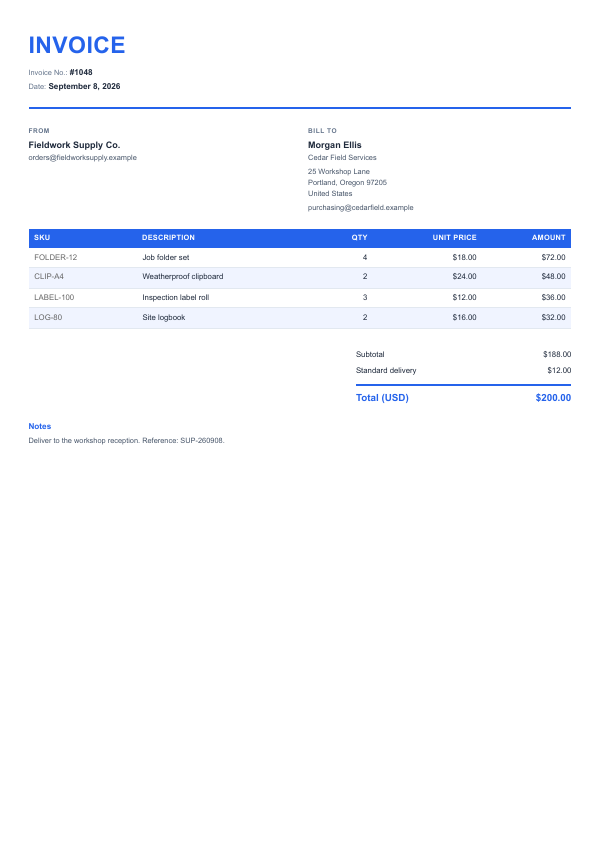
A Zapier action that generates professional PDF documents (invoices, receipts, quotes, refunds, and more) from e-commerce order data. Supports Shopify, 3 visual styles, and 50 languages with automatic format and locale detection.

For the quickest start, try our Email Shopify Order PDFs to Customers Zap template below.

Quick setup:

  1. Add a Shopify trigger step (e.g. New Order) to your Zap.
  2. Add the Export Shopify Data to PDF action step.
  3. Map the Shopify step output to the Shopify Data field.
  4. Fill in some shop details: Shop Name, Shop Address fields, Logo URL, and others.
  5. Optionally choose Paper Size and Style (modern, classic, or minimal).

Export Stripe Data to PDF

A Zapier action that generates professional PDF documents (invoices, receipts, quotes, refunds, and cancellations) from Stripe invoice, quote, and refund data. Supports Stripe, 3 visual styles, and 50 languages with automatic format and locale detection.

For the quickest start, try our Email Stripe Invoice PDFs to Customers Zap template below.

Quick setup:

  1. Add a Stripe trigger step (e.g. New Invoice) to your Zap.
  2. Add the Export Stripe Data to PDF action step.
  3. Map the Stripe step output to the Stripe Data field.
  4. Fill in some seller details: Seller Name, Seller Address fields, Logo URL, and others.
  5. Optionally choose Paper Size and Style (modern, classic, or minimal).

Raw Request Data to PDF

A Zapier action that exports data from any trigger or step into a formatted PDF document. Supports JSON, plain text, form data, and XML with automatic format detection.

Note: To remove the demo watermark, use your PDFCrowd username and API key in the action's authentication settings.

Zap Templates

Ready-made Zaps you can use as a starting point. Click a template to customize it in your Zapier account.

Convert New Emails to PDFs and Upload to Google Drive

Automatically archive your emails as PDFs. When a new email arrives in Gmail, this Zap converts its HTML content to PDF and saves the file to a folder in Google Drive.

Try this Zap

Email Shopify Order PDFs to Customers

Automatically generate a PDF document for new Shopify orders and email it to the customer. By changing the Shopify trigger (e.g. New Paid Order, New Cancelled Order), you can create different document types such as receipts, invoices, refunds, or cancellations.

Try this Zap

Email Stripe Invoice PDFs to Customers

Automatically generate a PDF document for new Stripe invoices and email it to the customer. By changing the Stripe trigger (e.g. New Paid Invoice, New Refund), you can create different document types such as receipts, refunds (credit notes), or cancellations.

Try this Zap

Zapier Reference

Refer for details to the Zapier Reference.